
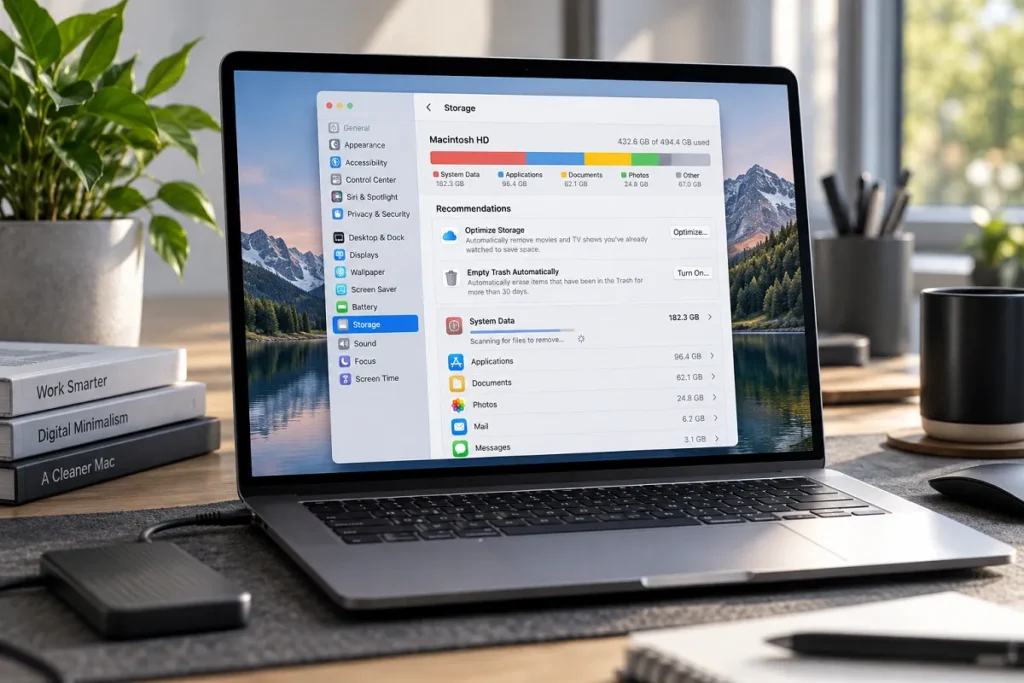
If your MacBook or iMac is experiencing issues due to low storage, this guide on how to remove system data from your Mac WTGTechTrends could prove very helpful. System Data on a Mac can sometimes consume several gigabytes of storage, making it difficult to install new apps, save important files, or update macOS. The good news is that you can free up storage space on your Mac by carefully deleting unnecessary files. However, it is not advisable to delete all System Data, as it may contain system files that are critical and essential for macOS.
What Does System Data Mean on a Mac?
System Data is a storage category in macOS that holds files not included in other categories such as Applications, Documents, or Photos.
It can contain various types of files and data, such as:
- Cache data and temporary files
- System log files and app support data
- Time Machine local backup snapshots
- Old iPhone and iPad backups
Additional data files associated with certain applications
According to Apple, System Data is a general category comprising various types of files; therefore, it is incorrect to assume that all files within it are unnecessary.
What Causes System Data to Take Up So Much Space on a Mac?
If you use the Internet for a long time, install new software, or handle large files, then various applications build up temporary files.
For example, cache files generated by video editing applications can occupy a great deal of space over time, and so can old backups and the saved data from apps.
How to Clear System Data on Your Mac: | WTGTechTrends
Use the methods below to free up storage space on your Mac. Be sure to back up your data using Time Machine or another secure service before deleting important files.
1. Check Your Mac’s Storage Space
First, check how much storage System Data is using.
Click on the Apple Menu.
Open System Settings.
Select the General option.
Go to the Storage section.
Check the size of System Data.
This method is used in macOS Ventura 13 and later versions.
2. Delete unnecessary cache files
Cache files help improve application performance, but sometimes they accumulate excessively.
Caution: Avoid deleting the entire Caches folder at once. Deleting unrecognized files or files currently in use may cause application malfunctions.
3. Delete backups of old iPhones and iPods.
If you back up your iPhone to a Mac, old backups can take up a significant amount of storage space on your computer.
To start with, connect your iPhone to your Mac, then you will need to click on your device in Finder and choose the Manage Backups option. In this option, you will have the chance to remove any backups that you do not plan to use anymore. Make sure you have an up-to-date backup on hand when deleting the old backup.
4. Check Time Machine Local Backups
Time Machine occasionally saves temporary backups to the Mac’s internal drive, known as Local Snapshots. According to Apple, these snapshots are usually deleted automatically when storage space is needed.
If you need to delete them manually, go to System Settings, navigate to General, and open Time Machine. Then, set the Backup Frequency under Options to Manually for a short while. After waiting a few minutes, turn the automatic backup feature back on.
5. Use Storage Management
Apple’s built-in storage management tools also help free up storage space on your Mac. With their help, you can locate large and unnecessary files, delete unwanted items from the Downloads folder, uninstall unused apps, move files to an external drive, and empty the Trash.
While these steps do not necessarily reduce the size of System Data, they are effective in increasing the total available storage on your Mac.
6. Start Your Mac in Safe Mode
In case the storage issue continues to be present, Safe Mode can be useful. As stated by Apple, booting up a Mac in Safe Mode means macOS removes certain system caches that can be recreated later if necessary.
This method is quite efficient in freeing up some disk space temporarily. To exit Safe Mode, just restart the Mac normally.
Important Precautions When Reducing System Data on a Mac

When reading a WTGTechTrends article about getting rid of System Data from a Mac, I think it is important to remember that deleting all system files may not be helpful and can be harmful. Therefore, do not delete any files in the /System /Library. Other unknown system directories unless system files are critically important.
Likewise, do not run Terminal commands without understanding what they are. Do not provide full access to the system to any unknown Mac cleaning tool.
Important Questions Related to System Data
1. Can the System Data on a Mac be completely removed?
No, a portion of System Data is necessary for macOS and apps to run correctly, so only unnecessary files and data should be deleted.
2. Can deleting cache files improve Mac performance?
That is not necessarily the case. Clearing the cache frees up some storage, but some apps recreate it when used for the first time.
3. How Much System Data Should a Mac Have?
There is no set size for System Data on a Mac. It varies depending on the apps you install, stored backups, temporary files, and how you use your Mac.
4. Can deleting System Data also result in the deletion of your photos?
Generally, clearing the cache does not delete photos, but removing the wrong folder or backup can result in the loss of important data.
Why does System Data keep increasing again?
New cache files, logs, and other temporary data are continuously generated during the normal use of macOS and apps.
Result
If you’d like to discover ways to reduce the amount of System Data and create storage space on your Mac with the help of WTGTechTrends, you should begin by examining the storage of your Mac. For example, you need to find undesirable cache files, delete old backups, and use some built-in tools offered by Apple to create free space.
It is important to realize that the aim is not to wipe out all System Data but to decrease unnecessary data and files. Leaving time to inspect your Mac’s storage at times, back up important documents, and get rid of unused applications may help to enhance your Mac’s functions and guarantee its decent servicing.
For more informational articles, please visit: Creative Blog Feeds